The Actions List displays the actions that have been created for Learner Log records. These can be viewed by selecting on the Actions tab in the left-hand pane on the Home screen in Central.
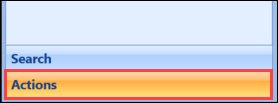
The Actions List screen is displayed, which lists any incomplete actions for the currently logged-in user.

From the Actions List screen, you can:
 View and complete actions
-
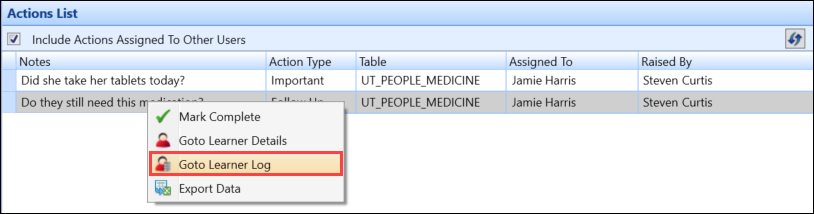
Select on the action you want to view to display the Actions tab for the learner. Alternatively, select and hold (or right-click) on the action and select the Goto Learner Log option.
-
Select the check box in the Complete field to mark an action as completed.

-
Select the Save button to save the record. Alternatively, select the Save and Close button to save the record and close the Learner Log window.
 Important.Alternatively, when select and hold (or right-click)ing on an action, you can select the Mark Complete option to complete an action without opening the learner log.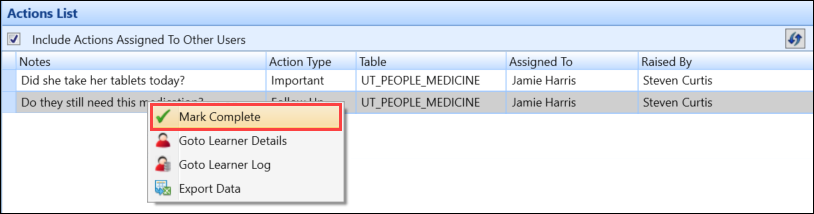
Mark multiple actions as complete
To mark more than one action as complete:
-
From the Actions List screen, select multiple action records, use Shift-select (for a series of records), Ctrl-select (for individual records), or Ctrl+A (for all records).
-
Select and hold (or right-click) the records, and then select the Mark Complete option.
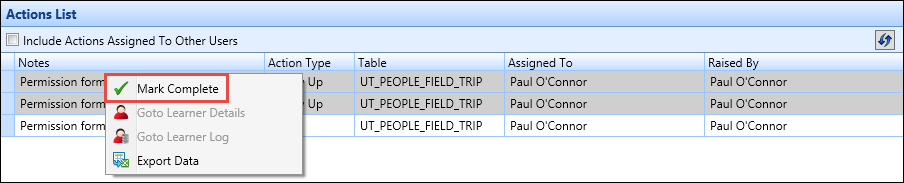 Important.The Go To Learner Details and Go To Learner Log options are disabled when multiple records are selected, although the Export Data option is still available for selection.
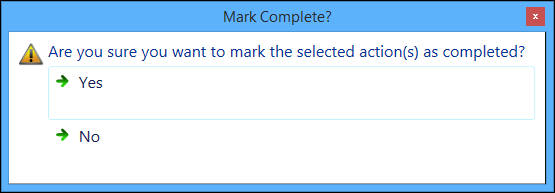
The following message is displayed.
-
Select Yes to confirm the actions as complete.
The selected actions are marked as complete and the Action List screen updated.